The app is in English, Norwegian and Swedish, and follows the language on your iPhone. To use another language just in HockeySub, open the Settings app, tap Apps, then HockeySub, and pick a language under Language.
1. Getting started
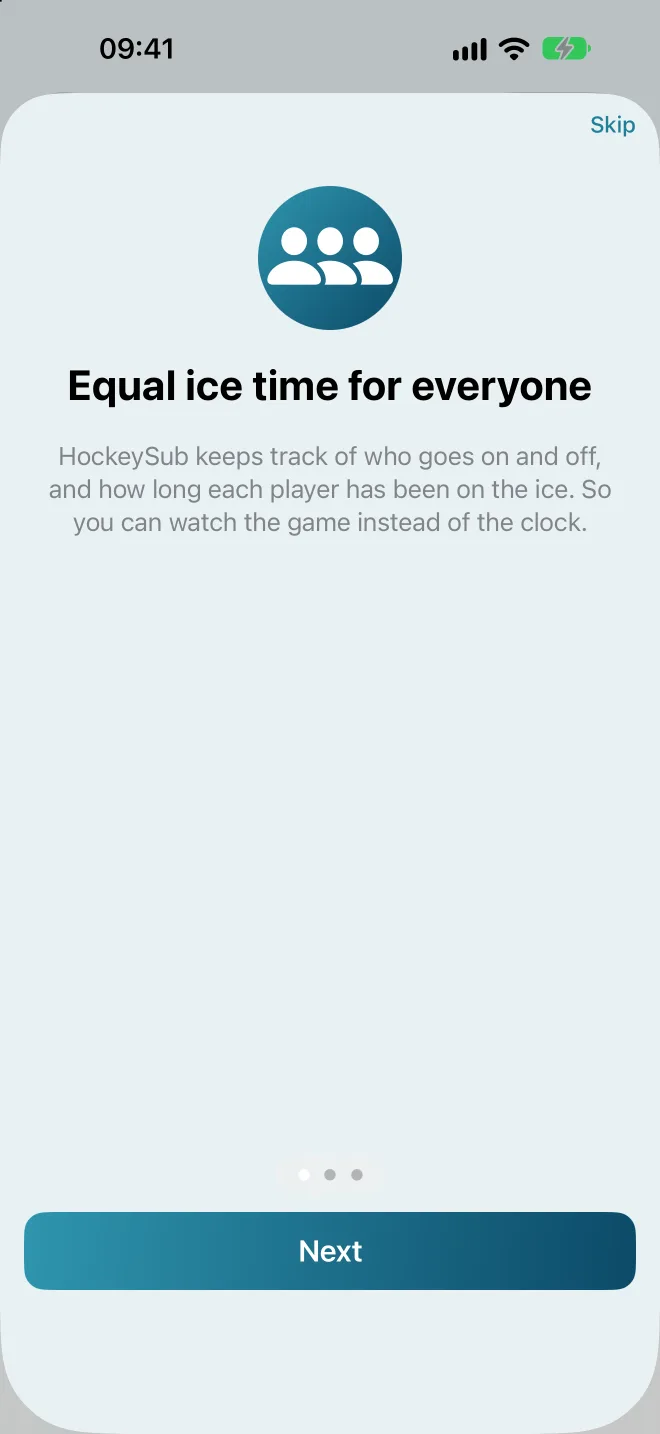
The first time you open HockeySub, you get a short three-page introduction. There you can also tap Try a demo game to see how a game works with a ready-made demo team. The demo game is not saved and doesn’t touch your team.
The setup screen
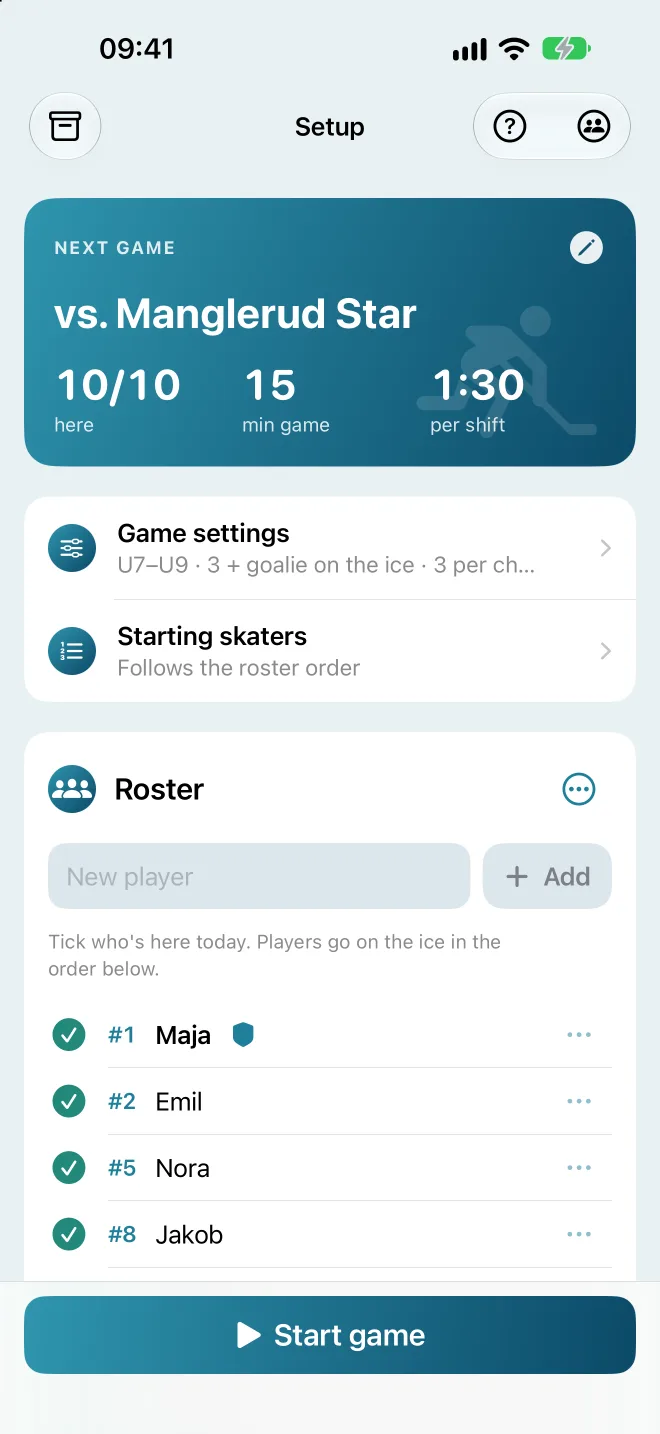
After the introduction you land on Setup. This is where you do everything before the game:
- Next game (the blue card at the top) shows the opponent, how many players are here, game length and time per shift. Tap the card to open the game settings.
- Game settings holds the rules for the game: rules, age group, game length, line changes and goalie.
- Starting skaters is who goes on the ice first.
- Roster is your team, and who is here today.
- Start game is always at the bottom. If something is missing, the text above the button tells you what to do.
The buttons at the top
- The archive box on the left opens Archive with all saved games.
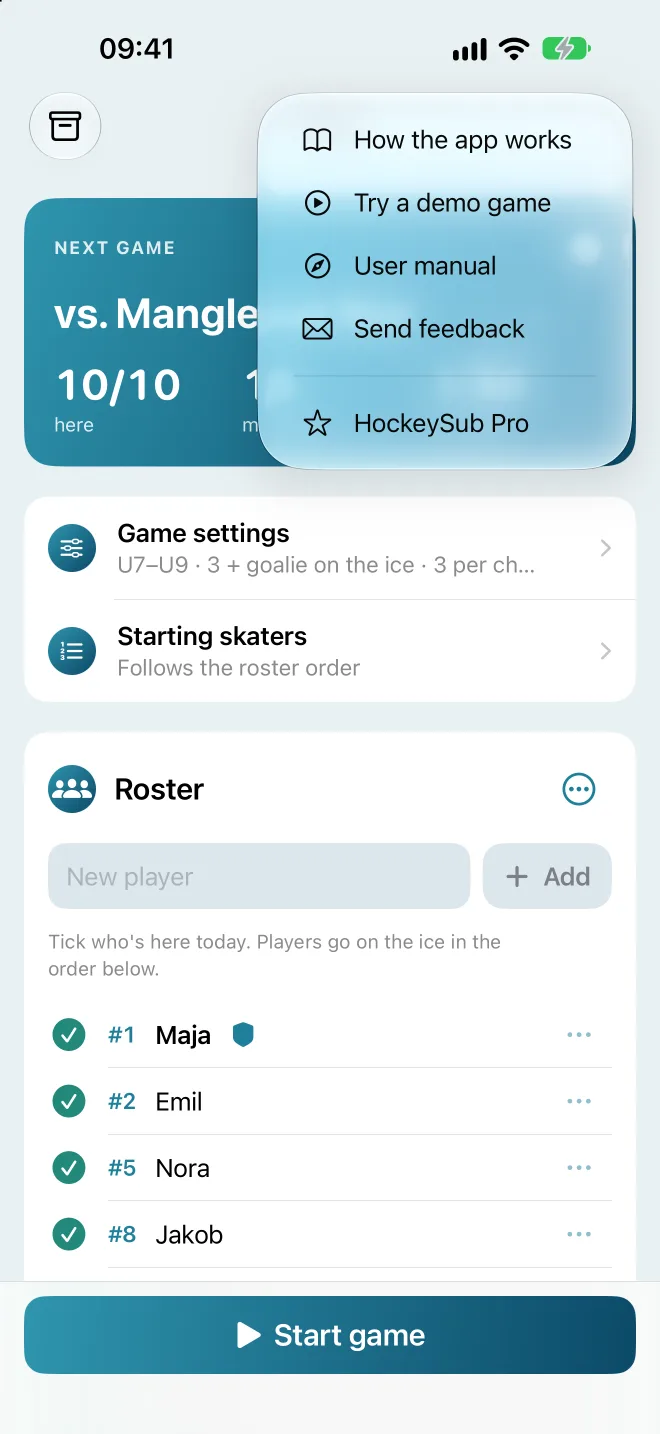
- The question mark has the introduction (How the app works), the demo game, a link to this guide (User manual), Send feedback and HockeySub Pro. Send feedback opens an email to the developer with the app version filled in.
- The team button (two people) switches between your teams and opens Manage teams.
Ready in a minute: add your players, pick an age group under Game settings, tick off who is here and tap Start game. You can fine-tune the rest later.
2. The roster
Adding players
- Type the name in the New player field.
- Tap Add, or Done on the keyboard.
- Repeat for the whole team. The goalie is added like any other player.
Jersey numbers, names and deleting
Tap … next to a player to choose Add jersey number, Rename or Delete. The jersey number is shown in front of the name in the player lists during the game and in the archive, for example “#8 Jakob”. At the top of the game screen, next to Off and On, and on the lock screen, only the name is shown. Leave the field empty to remove the number.
Who is here today?
Tap the circle in front of a name to tick off who is here. Only ticked players take part in the game. The … menu at the top of the roster has Everyone here, which ticks everyone at once.
The order
Players go on the ice in the order they appear in the roster. Choose Reorder under … at the top of the roster and drag players up or down. Tap Done when you’re happy.
Who starts?
Tap Starting skaters on the setup screen and tick the players who start on the ice. The goalie comes in addition. If you choose fewer than there is room for, the rest are filled in following the roster order. Clear removes your choices.
3. Game settings
Tap Game settings on the setup screen, or the blue card. Everything is saved right away, so just tap Done when you’re ready.
Rules and age group
At the top, pick the Rules: Norway (NIHF), Sweden (SIF), International (IIHF) or Canada (HC). The app picks one based on your iPhone’s language (Norwegian gives NIHF, Swedish gives Sweden, other languages give IIHF), but you can change it whenever you like. The choice is per team, and teams you already had keep NIHF.
Then pick an Age group, and the rules are filled in for you. You can change the values afterwards. The age group then shows as Custom. This is how the age groups look with NIHF:
| Age group | On the ice | Game | Time per shift |
|---|---|---|---|
| U6 | 3, no goalie | 15 min stop time | 1:30 |
| U7–U9 | 3 + goalie | 15 min stop time | 1:30 |
| U10–U11 | 3 + goalie | 15 min running time | 1:00 |
| U12 | 3 + goalie | 15 min running time | You choose |
| U13 | 5 + goalie | 2 x 20 min | You choose |
U6 isn’t in the NIHF game rules, which start at U7. The preset follows common practice: the same rink as U7–U9, 3 on 3 without a set goalie (one of the skaters may stand in goal), and the whole line changes every 90 seconds.
In Norway the score counter is off by default up to and including U12, because keeping score in games before U13 is not recommended. You can turn it on in the game settings. In U13, and in every age group in Sweden, IIHF and Canada, it is on.
The other rules have their own age groups:
- Sweden: TKH–U9 and U10 (3 + goalie, at least 15 min, change every 60 seconds), U11 (free changes), U12 (2 x 8 min, changes on the fly) and U13 (5 + goalie).
- IIHF: U10 (4 + goalie, change every 90 seconds) and U12–U14 (4 + goalie on half ice).
- Canada: U7 and U9 (4 + goalie, change every 2 minutes) and U11–U13 (5 + goalie, changes on the fly).
Where the rules don’t set a game length, the app keeps the length you have chosen.
Game rules has an easy-to-read summary of the chosen rules for every age group, with links to the federation’s official documents. Under Fair play you’ll find the rules on body contact and checking. The summary is stored in the app, so you can read it at the rink without a connection.
U6 and U7–U9: Turn on Stop the clock at changes so the app follows stop time. U13: The game is set to 2 x 20 minutes. The clock stops after the first period, and you tap Start period 2 when you’re ready.
Kamp (game)
- Opponent: the name is shown during the game, in the archive and in the PDF report. Teams you have played before can be picked from the menu next to the field, and when you tap the field, your latest opponents appear as suggestions that narrow down as you type. Swipe left on a suggestion to hide it from the list, for example a typo. The archive is not changed.
- Periods: 1, 2 or 3. With one period the game runs straight through, as before.
- Game length: from 5 to 120 minutes. With more than one period it’s called Minutes per period, and the game becomes e.g. 2 x 20 min.
- Score counter: follows the age group you pick (off for U6–U12 with NIHF, otherwise on). You can turn it on or off yourself. Without a score counter the game shows no score and is saved without a result.
Bytter (line changes)
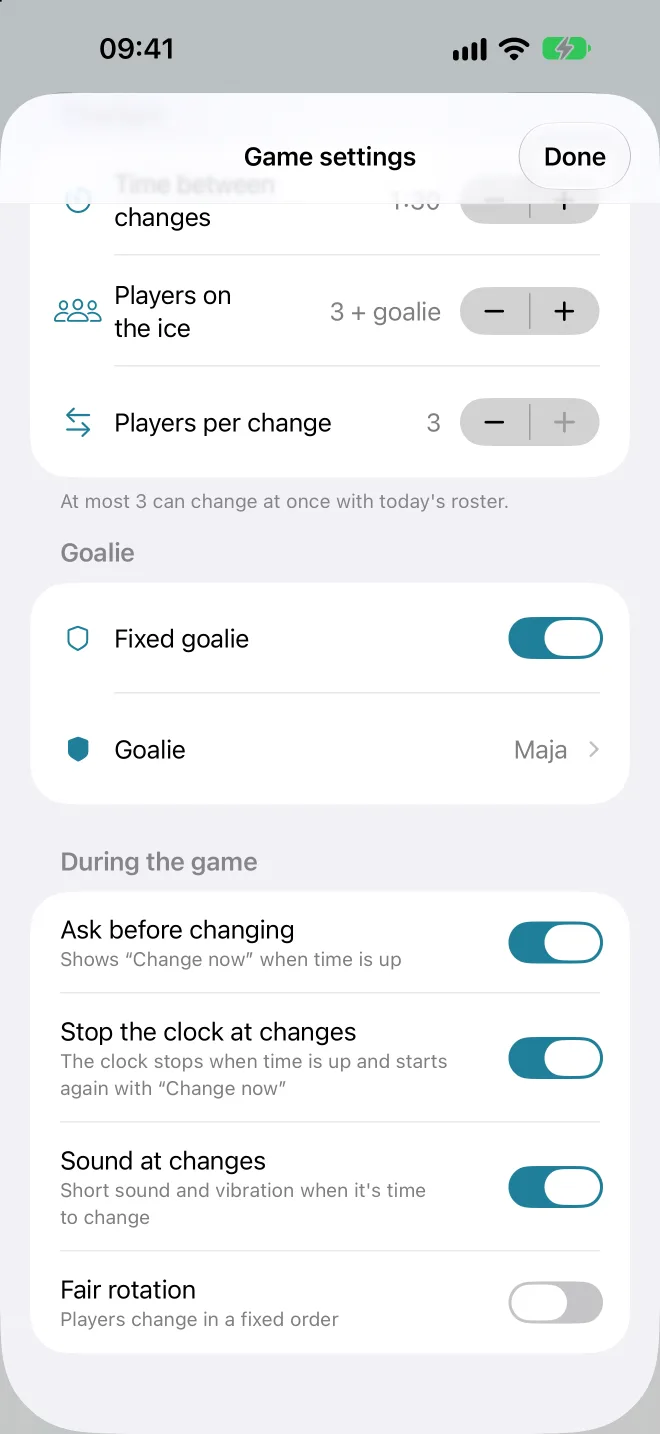
- Time between changes: how long each shift lasts, from 20 seconds to 3 minutes.
- Players on the ice: how many play at the same time, including the goalie.
- Players per change: how many go off and on at each change. Usually the whole line. If you change fewer than the whole line, the app shows a warning, since some players then stay on for several shifts in a row. NIHF rules say no one should play two shifts in a row.
Goalie
With Fixed goalie turned on, you choose who plays in goal. The goalie plays the whole game and is not part of the rotation. Turn it off and everyone rotates.
Under kampen (during the game)
- Ask before changing: the app shows Time to change! and waits for you to tap Change now. When off, the app changes lines by itself when time is up.
- Stop the clock at changes: the game clock stops when time is up and starts again when you tap Change now.
- Sound at changes: a short sound in addition to the vibration.
- Fair rotation: the players with the least ice time go on, and those with the most come off. When off, players change in a fixed order.

4. During the game
Tap Start game. The screen stays awake as long as the clock is running.
The top of the screen
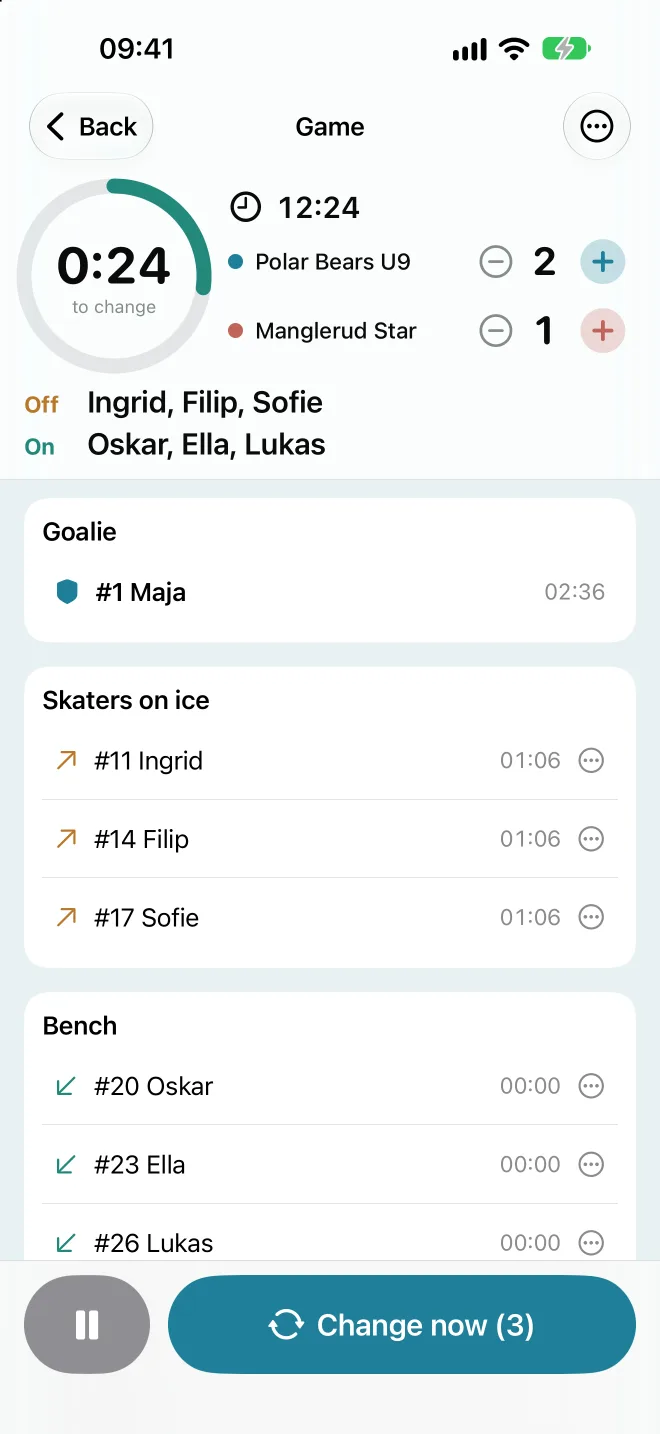
- The ring counts down to the next change. It turns amber in the last ten seconds.
- The game clock shows the time left. If the game runs over, the extra time is shown with a plus sign. If the game has periods, Period 1 of 2 appears above the clock, and the clock shows the time left in the period.
- The score: tap + next to your team name or the opponent when someone scores. If your team is still called My team, it says Us. − fixes a mistaken tap. With the score counter off, only the opponent’s name is shown.
- Off and On show who changes next.
The lists
Below the top you see Goalie, Skaters on ice, Bench and, if needed, Out of the game. The time next to each player is their total ice time. Small arrows show who goes off and on at the next change.
Time to change
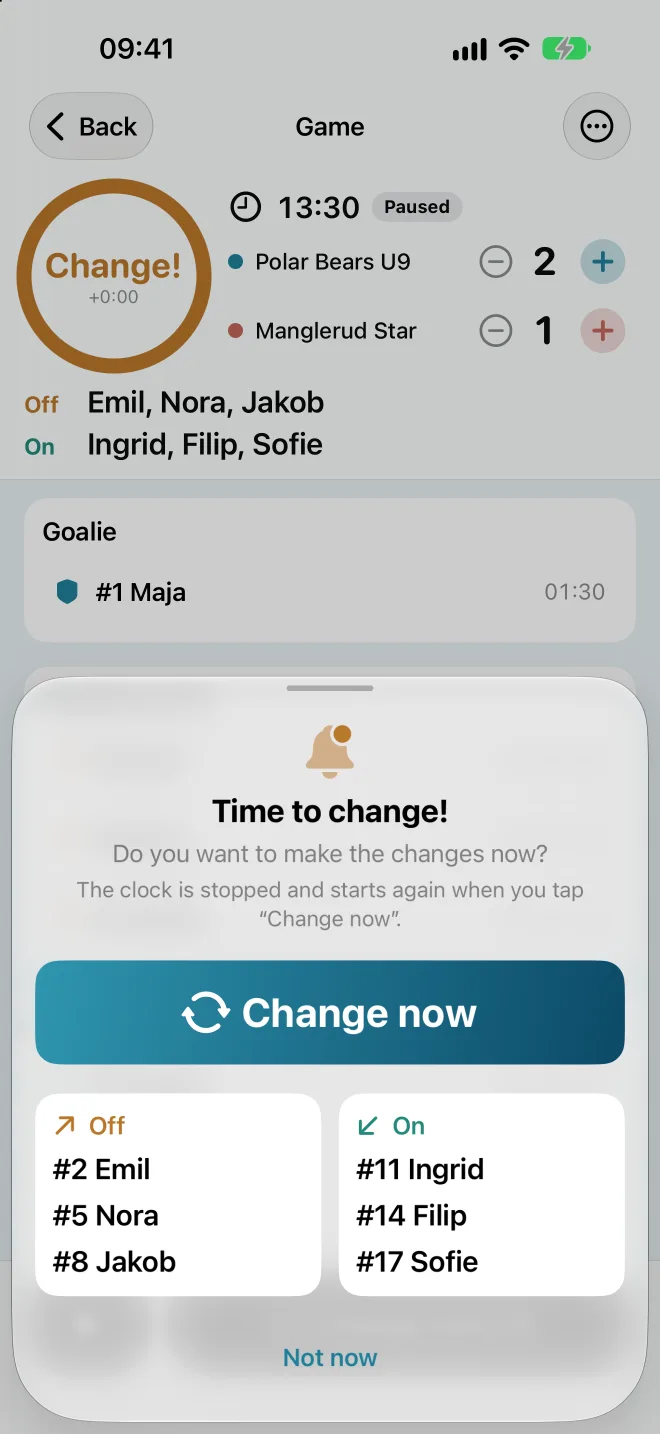
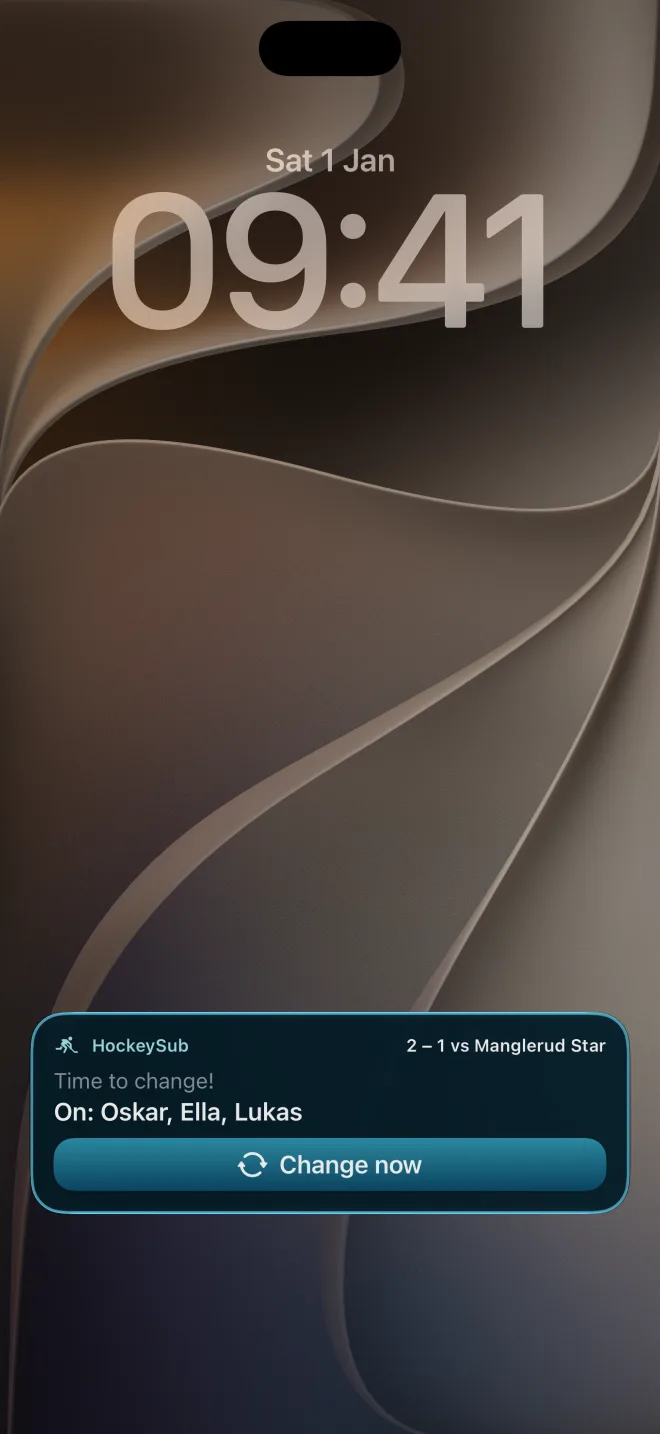
When time is up, the phone vibrates and Time to change! appears with who goes off and on. Tap Change now. If you need to wait a moment, tap Not now. The ring then says Change! and shows how long the change has been waiting. Tap the ring to bring the prompt back.
You can tap the Change now button at the bottom at any time, also before time is up. The number on the button is how many players change. The pause button next to it stops and starts the clock.
Periods
When a period ends, the clock and ice time stop, and the phone vibrates and plays a sound like at a change. End of period appears by the clock. Tap the big Start period 2 button when the next period begins. Line changes pick up where they left off, so the rotation stays fair over the whole game. You can change lines with Change now during the break without starting the clock. Goals and ice time count for the whole game, and the archive and PDF report show the game time as e.g. “2 x 20 min”.
Choosing who goes on and off
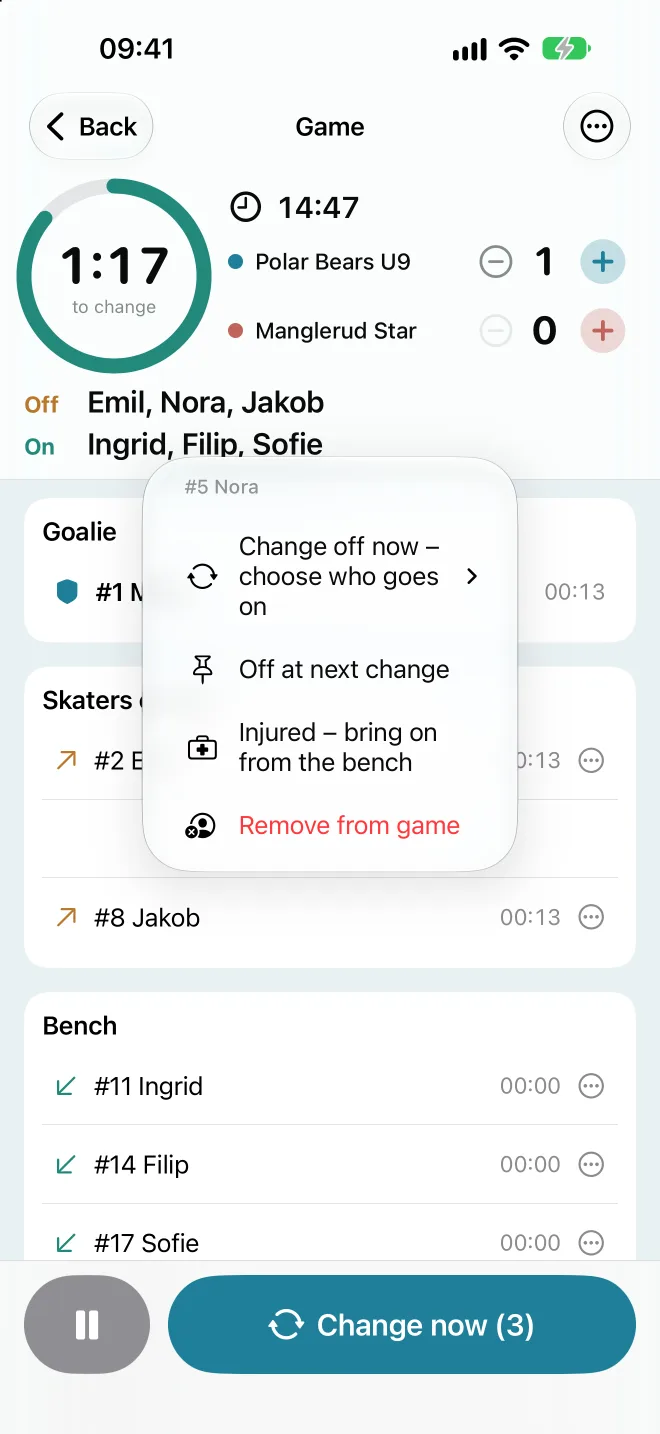
Tap a player to see the options:
- On the ice: Change off now – choose who goes on, Off at next change, Injured – bring on from the bench and Remove from game.
- On the bench: Change on now – choose who comes off, On at next change and Remove from game.
Players you’ve picked for the next change get a small pin. Tap the player again and choose Not off/on at next change to undo.
Injuries or a player who has to leave
Injured – bring on from the bench takes the player off the ice and puts the next player from the bench on right away. Remove from game moves the player to Out of the game. When the player is ready again, tap Bring back.
Ending the game
Tap … at the top right and choose Stop and save game. The game is saved in the archive. If it was a practice game you don’t want to keep, choose Stop and discard game.
Back at the top left takes you to the setup screen without stopping the game. Tap Continue game to return. If the app is closed in the middle of a game, it picks up where it left off when you open it again.
5. Lock screen, Dynamic Island and Apple Watch
While a game is running, HockeySub shows a Live Activity on the lock screen. It shows the countdown to the next change, who goes on, who comes after them, and the score (when the game has a score counter). You can tap Change now right from the lock screen without opening the app.
If the game has periods, you also see which period it is and the time left in it. When the period ends, it says Period 1 is over, and you start the next period in the app.
On an iPhone with Dynamic Island, the countdown stays at the top of the screen while you use other apps. Touch and hold it to see more and get the Change now button.
If you have an Apple Watch, the same information appears in the Smart Stack on your watch, with its own Change now button.
Can’t see it? Go to Settings > HockeySub on your iPhone and check that Live Activities is turned on.
6. Archive and season stats
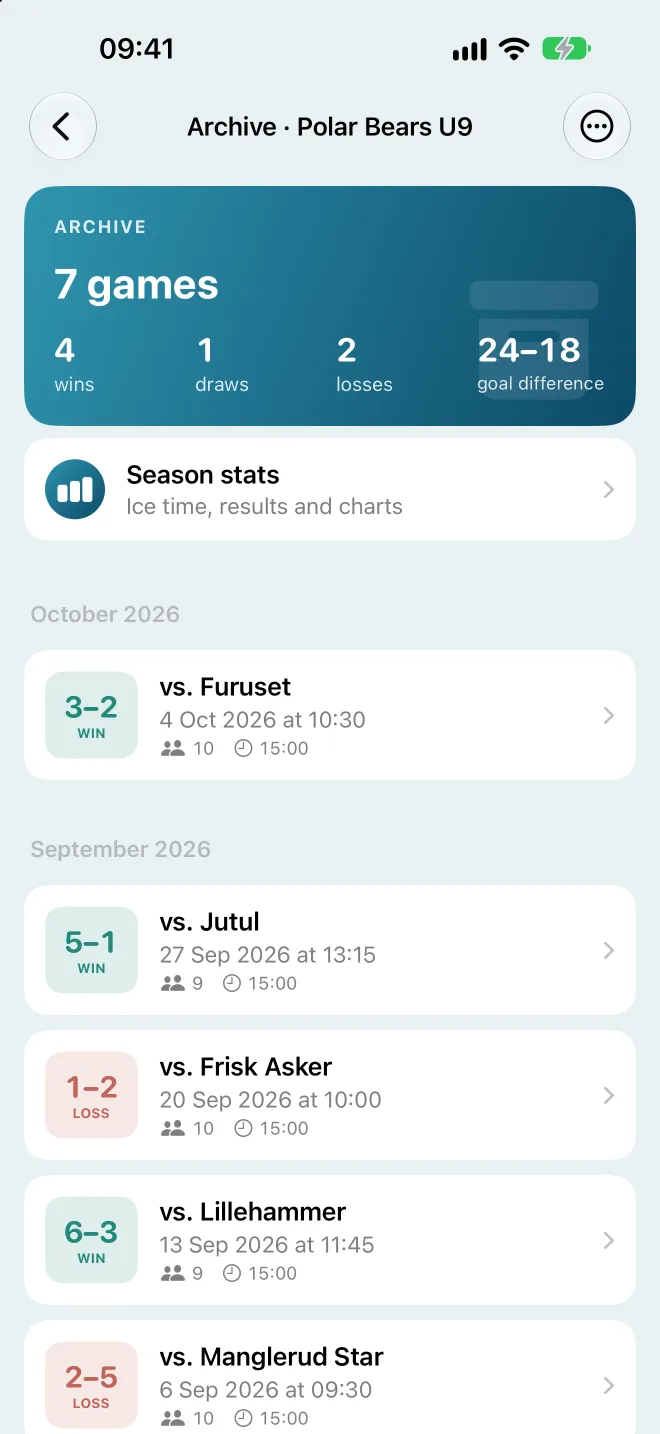
Tap the archive box at the top left of the setup screen. At the top you see wins, draws, losses and goal difference for all games. Below are the games, grouped by month.
Game details
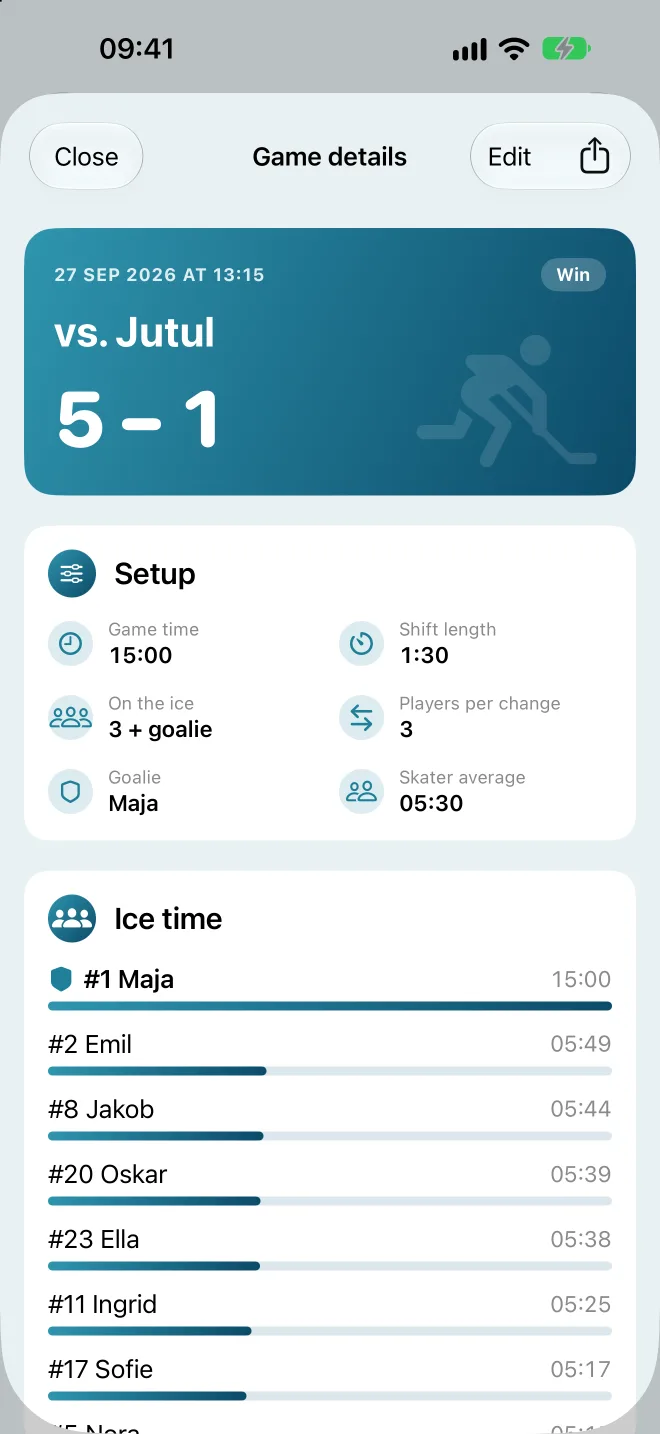
Tap a game to see the result, the settings and how long each player was on the ice. Games played without a score counter have no result, so they don’t show “0–0”.
Correcting a game
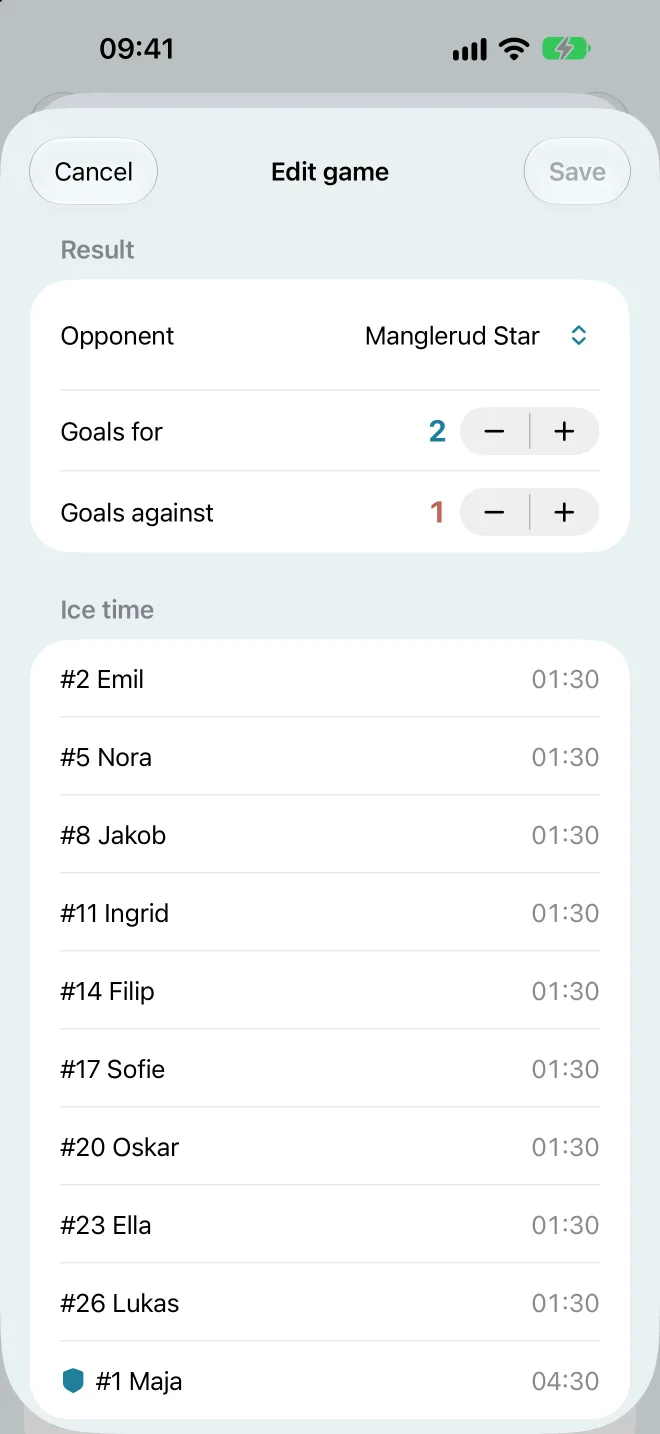
Tap Edit in the game details. You can change the opponent (with the same suggestions as in the game settings), goals for and against, and each player’s ice time (tap the player). A game played without a score counter can get a result afterwards with Add result. Tap Save.
Sharing a game as a PDF
Tap the share button at the top right of the game details (Share as PDF, share as PDF). Send the report via Messages, email or AirDrop, or save it to Files.
Sharing several games
- Tap … at the top right of the archive and choose Select games to share.
- Tap the games you want, or Select all.
- Tap Share … games at the bottom. You get one PDF with one page per game.
Pro: Sharing several games at once needs HockeySub Pro. You can always share one game at a time for free.
Deleting games
Swipe a game to the left and tap Delete. Under … you can also choose Delete games to delete several, or Delete all. Deleting can’t be undone.
Season stats
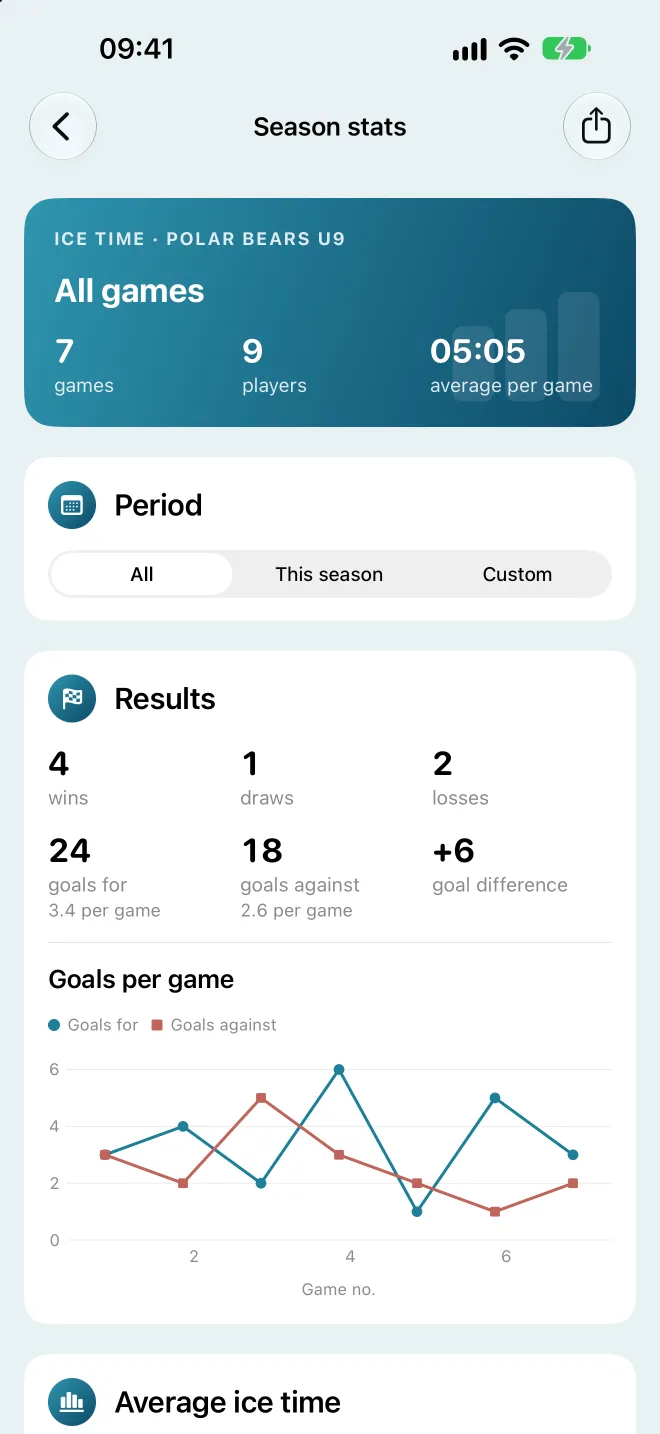
Tap Season stats at the top of the archive. It shows each player’s ice time across all games. The bar shows the average per game, so it’s fair even if someone has played fewer games. Games played as goalie are not counted in the average. Tap a player to see their ice time game by game.
Results shows wins, draws and losses, goals for and against (in total and per game) and a chart of the goals game by game. Only games where you have entered goals for both teams are included. Games without a score counter only count towards ice time.
Average ice time is a bar chart with each skater’s average per game. The dashed line is the team average, so you can see at a glance if anyone is getting too little ice time. Below it is the gap between the players with the most and least average, in minutes and percent. The lower the percentage, the more evenly ice time is shared.
Under Period, choose All, This season (from 1 August) or Custom for your own dates. The stats can also be shared as a PDF with the share button at the top.
Pro: Season stats, including the PDF, are part of HockeySub Pro. The archive, game details and correcting games are free.
7. Several teams and sharing with an assistant coach
Several teams
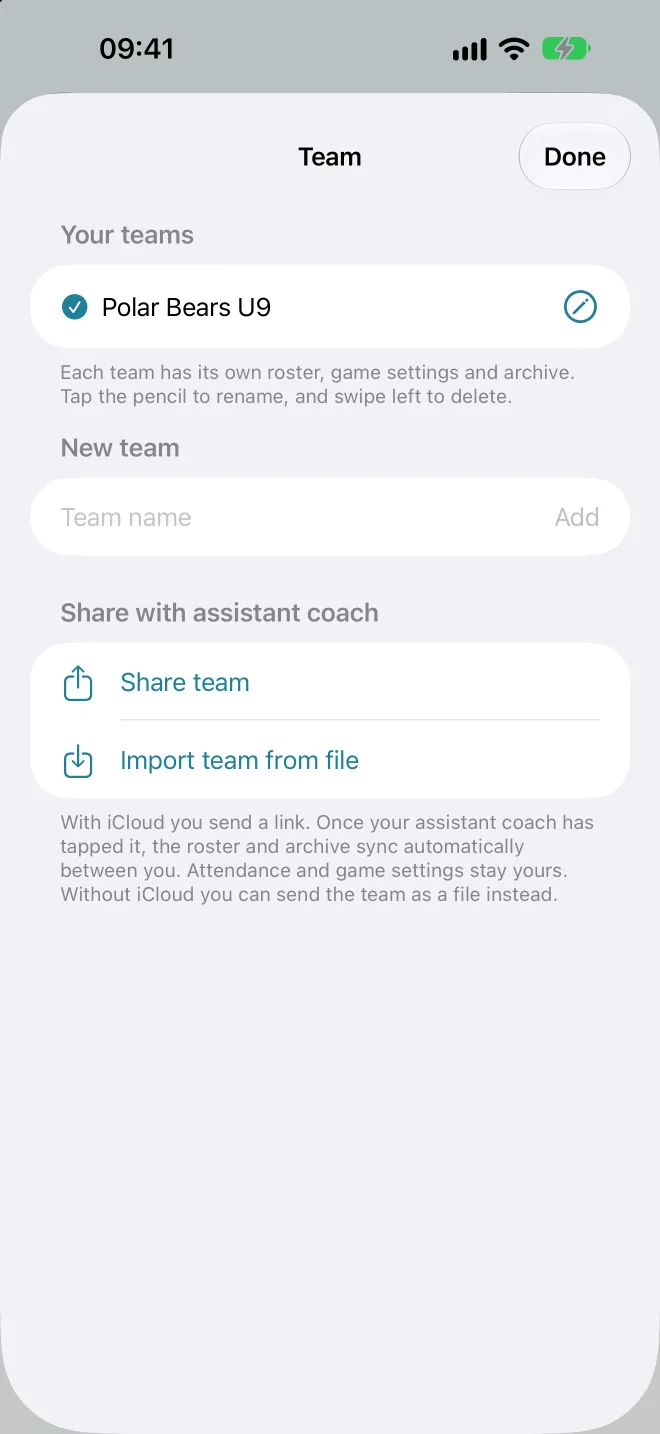
Tap the team button at the top right of the setup screen and choose Manage teams. Under New team, type the name and tap Add. Each team has its own roster, game settings and archive.
Once you have several teams, switch between them with the team button. The team name is shown at the top of the setup screen. You can’t switch teams while a game is running.
Tap the pencil to rename a team, or swipe left to delete it. The app tells you how many players and games will be lost before you delete.
Pro: Your first team is free. To create a second team and more, you need HockeySub Pro. Teams you get from an assistant coach or import from a file don’t need Pro.
Sharing your team with an assistant coach
- Open Manage teams and go to Share with assistant coach.
- Tap Share team, choose Send as file and send the file via AirDrop, Messages or email.
- The assistant coach taps the file, chooses HockeySub and then Import team.
The roster, archive and game settings are included. If the assistant coach already has the team, the button says Update team instead. New players and games are then added, and nothing is deleted. If you received the file some other way, use Import team from file.
If you’d rather keep the team in sync automatically, choose Share link via iCloud instead of Send as file. The app creates a link and opens the share sheet, so you can send the link in Messages, by email or wherever you like. When the assistant coach taps the link, the team appears in HockeySub, and from then on the roster and archive sync between you. Anyone who gets the link can join and edit the team, so only send it to the people who should have it. Under Who has access you can see who has joined, remove someone or stop sharing.
Pro: Share link via iCloud needs HockeySub Pro, but only for you as the one who shares. The assistant coach joins for free. Send as file is always free.
8. HockeySub Pro
HockeySub is free to download, and everything you need during a game is free. HockeySub Pro is a one-time purchase of 79 kr (NOK). It is not a subscription.
What Pro unlocks
- Several teams: a second team and more. Teams you get from an assistant coach or import from a file don’t need Pro.
- Season stats with results and charts, including as a PDF.
- Sharing several games at once as one PDF.
- iCloud sync with assistant coaches: only the coach who shares the team needs Pro. The assistant coach joins for free.
What’s free
Line changes and Change now, the lock screen and Dynamic Island, fair rotation and choosing who goes on. Age group presets and game rules for all the rulebooks. One team, the archive and correcting games. Sharing one game as a PDF and sending the team as a file. The introduction and the demo game.
How to buy
In the app, Pro features have a small PRO badge or a lock. Tap one of them to open the Pro screen. You can also find it under the question mark on the setup screen, as HockeySub Pro. Tap Buy Pro for 79 kr and confirm with your Apple ID.
New phone or deleted the app?
Open the Pro screen and tap Restore purchase. Use the same Apple ID you bought with. You won’t pay again.
Family Sharing
Pro supports Family Sharing. If you have purchase sharing turned on, the rest of your family can use Pro without buying it themselves.
The purchase is handled by Apple in the App Store. We don’t receive any payment information.
9. Frequently asked questions
How does the app make sure everyone gets equal ice time?
The app counts each player’s ice time and shows who goes off and on. Turn on Fair rotation under Game settings, and the players with the least ice time always go on, while those with the most come off. After the game you can see the split in the archive and season stats.
A player arrived late. What do I do?
Players can’t be added once the game has started. If you’re waiting for someone, tick them as here before you start. Then tap the player during the game and choose Remove from game. When the player arrives, tap Bring back under Out of the game.
I don’t get a sound or vibration when it’s time to change.
Check that Sound at changes is on under Game settings, that the phone isn’t on silent, and that notifications are allowed for HockeySub under Settings > Notifications.
Why can’t I tap Start kamp?
The text above the button tells you what’s missing. Usually there are too few players here, or Fixed goalie is on without a goalie selected.
What happens if I start a new game while one is running?
The app asks whether you want to save or discard the running game before the new one starts.
Is my data sent anywhere?
No. Everything is stored only on your phone, and is only shared when you choose to. Read more in the privacy policy.
Didn’t find your answer? See Support or send an email to post@hockeysub.no. You are welcome to write in English.